

Audience Collector helps you (the publisher) grow site traffic by attracting only high CPM visitors
By collecting the right audience you can retarget them or expand traffic by building a lookalike audience with this dataset in the traffic acquisition platform of your choice.
In theory, you could go as far as separating ad units and collector tags based on the category of the article content in order to increase the relevance of your traffic acquisition efforts. However, keep in mind that you would need to scale in each content category in order for this to work if you are planning on attracting new audiences through lookalike targeting.
Configuring providers using Google Tag Manager
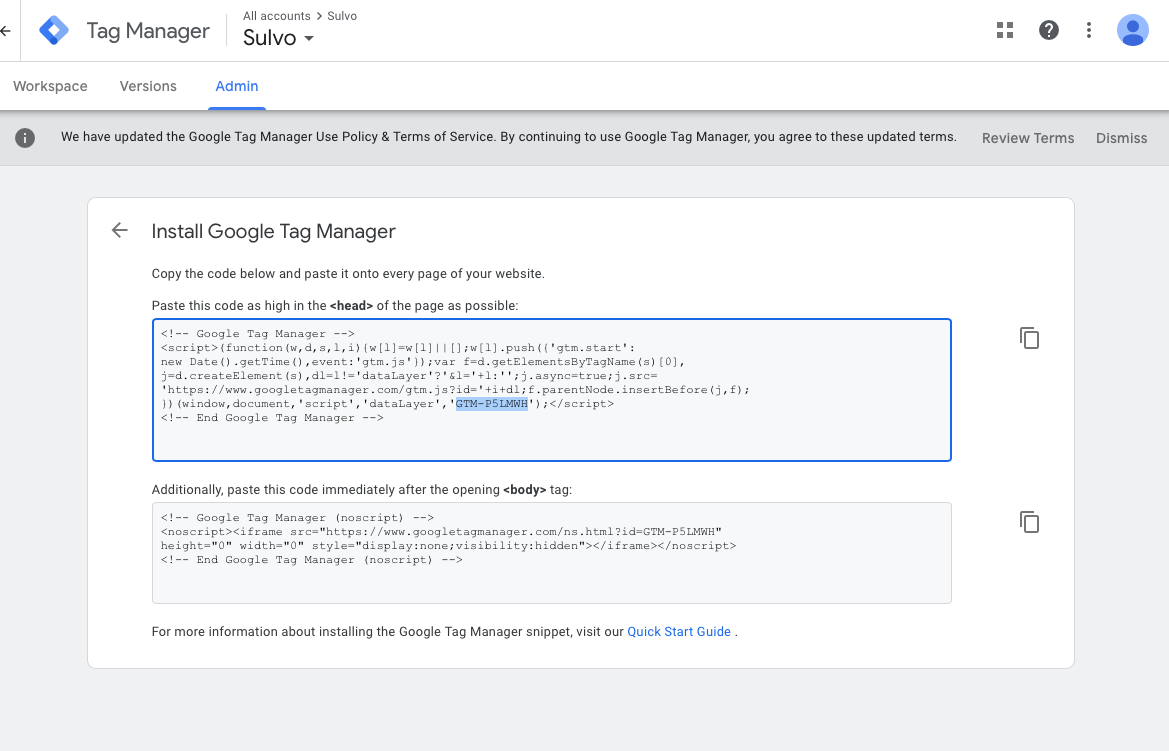
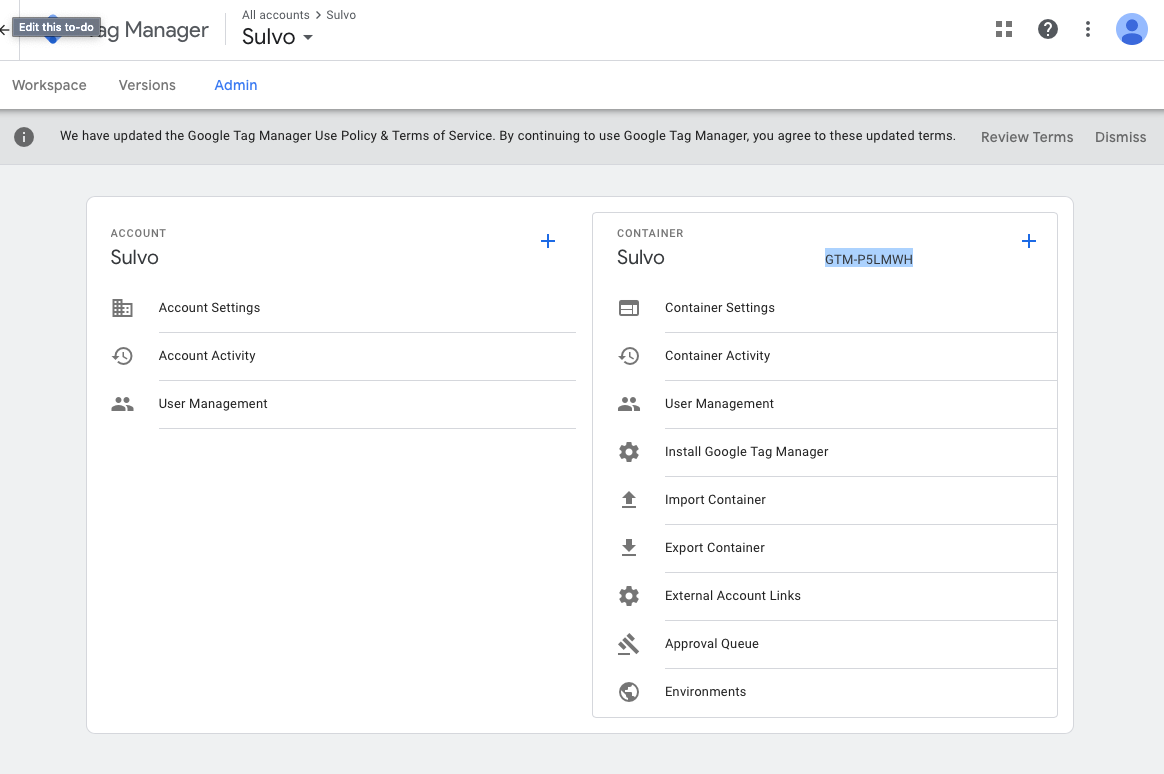
You can configure any marketing or retargeting providers utilizing Google Tag Manager. Google Tag Manager allows you to set fully custom codes or preset pixels, the configuration options are nearly endless. To utilize Google Tag Manager you will need your tag manager ID (also called "PublicID"), which can be found in Admin on your Google Tag Manager account. The required ID and where to find it in Tag Manager is highlighted in these examples (your ID will be unique to your account):
Configuring Facebook
You can use a Facebook pixel with Audience Collector to retarget your desired audience. The Facebook configuration is covered in the example below.
Example:
We will use Facebook as an acquisition channel to go through an example setup:
Step 1:
In your Facebook Ads account navigate to
https://www.facebook.com/events_manager/pixel and start the setup process by clicking "Get Started"
Step 2:
Select the "Email integrations to a developer" option
Step 3:
Select the "Pixel ID" and copy it over to Sulvo. You are done in Facebook and you can close the window where you generated the pixel ID.
Step 4:
In Sulvo select the traffic acquisition provider and the ad unit where you'd like to place your audience collector tag. For example, if you focus on mobile traffic then select a mobile ad unit that you are running on the mobile pages of your site.
Step 5:
Decide if you want to collect the "highest value" audiences only or if you want both high and medium value. (low-value audiences are always excluded in both categories). Select the one you'd like to include.
Step 6 (optional):
To fire a custom event enter the event label in the "Tracking string" field
Step 7:
Click save and make sure that you drive scale to this ad unit on your site otherwise your traffic acquisition platform won't have enough data to build a good lookalike dataset to work with. The more traffic the easier it will be for your traffic partner to acquire similar audiences for you.
Notes:
Audience collection needs scale and time. Your audience platform will perform better if you send them more traffic and will be more accurate in getting you new lookalike audiences with better data.
Once this tag has collected meaningful amount of data then you can use it either for simple remarketing or attracting new visitors based on this pool's lookalike audiences.
Please note that you don't need to add the Audience Collector to every ad unit, especially not if those ad units are running on the same pages. One Audience Collector per page is all you need to get the value out of the site visitor data.
Configure Audience Collector here: https://surge.sulvo.com/settings?vtab=audcol